You can remove a device from your Bitdefender subscription to free up a slot if that particular device is no longer in your possession, if it’s inactive and longer works, or if you simply don’t want it associated with your Bitdefender Central account.
ⓘ Devices protected by Bitdefender Lifetime Edition subscription cannot be removed.
If you no longer intend to use a device, you can remove it from the My Devices list in the Bitdefender Central online platform. Proceed as follows:
- Go to Bitdefender Central and sign in with your e-mail address and password.
- Access the My Devices section on the sidebar.
- Select the device you wish to remove and click the VIEW DETAILS (ISSUES) button.
- Click Remove in the upper-right corner of the page.
- Choose REMOVE to confirm the action. The number of devices on your current subscription is updated shortly.
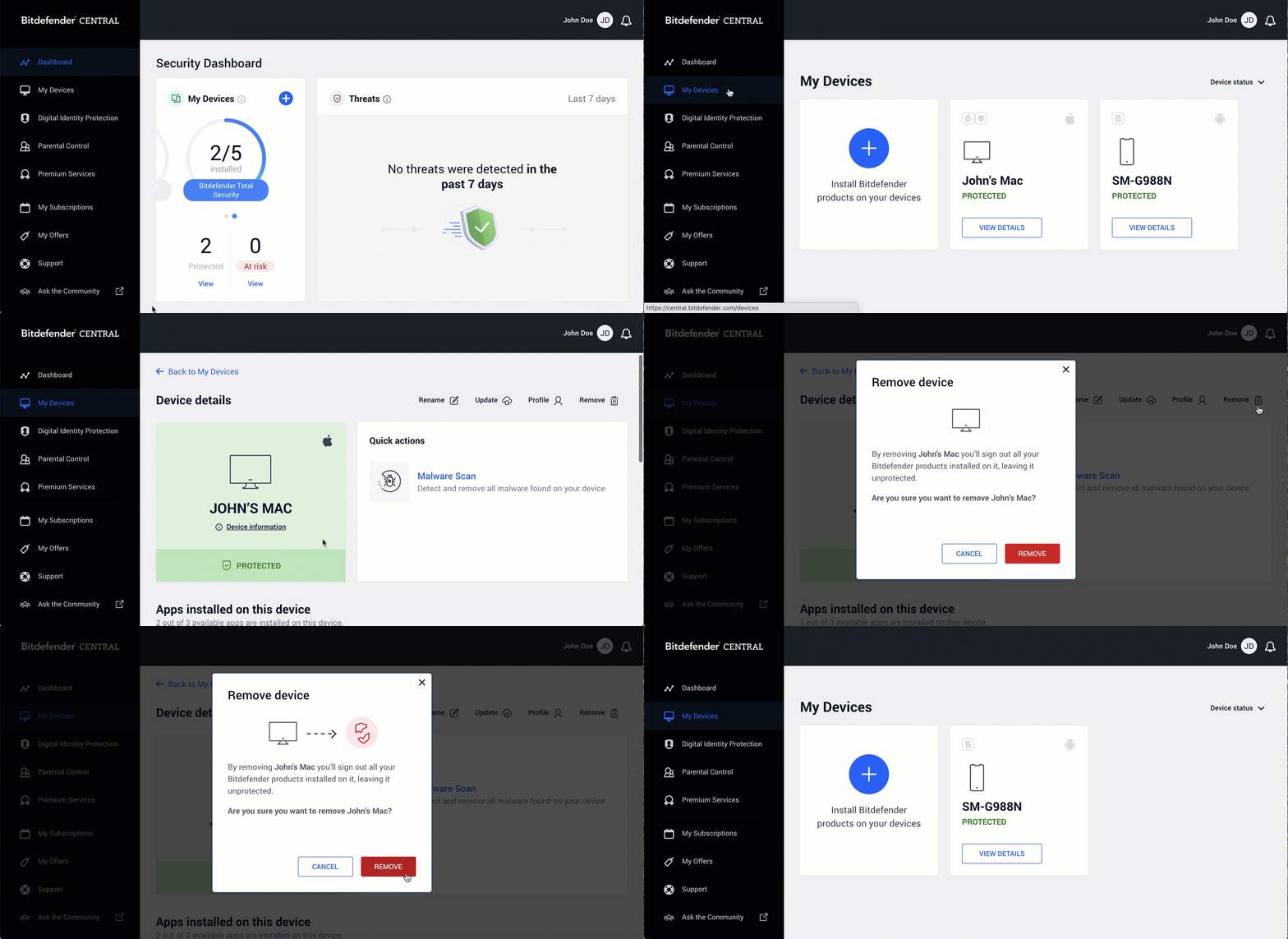
This animation illustrates how to remove a device from a Bitdefender Central account
ⓘ Note: Removing a device from your Central account will sign out all Bitdefender programs that are still installed on that particular device.
Additionally, if you also want to uninstall the Bitdefender software that is still installed on the device you have just removed from Central, please see the articles below.
- To uninstall Bitdefender from a Windows device, follow the steps from this article.
- To uninstall Bitdefender Antivirus for Mac, follow the steps from this article.
- To uninstall Bitdefender Mobile Security for Android, follow the steps available in this article.
- To uninstall Bitdefender Mobile Security for iOS, follow the steps available in this article.